Import from Media Storage in Courses ( Labs )
You can now add audio and video content to your courses directly from Media Storage.
Simply import existing media into your course lessons in just a few clicks.
What’s New
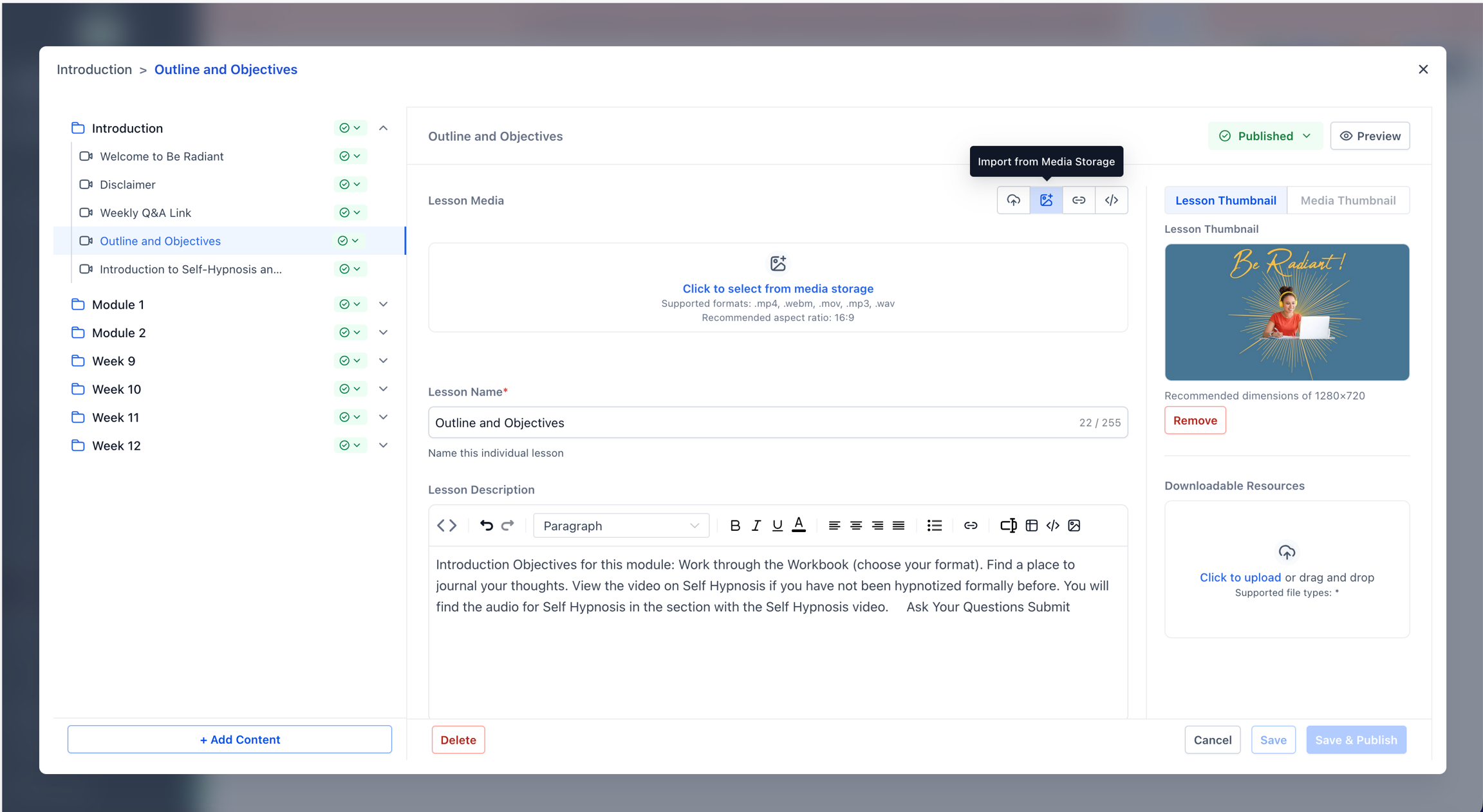
Import Media from Media Storage
Course creators can now:
Browse existing audio and video files from Media Storage
Select and import media directly into course lessons
Instantly reuse previously uploaded content
This enables faster content creation and a more streamlined workflow.
How to Use
Labs Access
This feature is currently available in Labs under:
"Courses: Import from Media Storage"
To enable it:
Go to Labs
Turn on Courses: Import from Media Storage for your location
You will then see the Import via Media Library option in the lesson creator.
Go to Courses
Open a course and navigate to a lesson
Create or edit a lesson
Click Import via Media Library
Select your desired audio/video file
Save and publish
Your media will now be linked directly from Media Storage.
Why This Feature Matters
Eliminates duplicate uploads
Encourages media reuse across courses
Keeps content centralized in Media Storage
Speeds up course creation workflows
Last updated